
Entity Framework Core: View Generated SQL Statements
A brief post on how to view SQL statements generated by LINQ when using the Fluent API.
If you don’t need the example code, and you just want to learn how to see the SQL in your own code, you can skip directly to Examining the Generated SQL Queries
For this example, I’ll be using my sample Customers and CustomerInvoices tables again. These examples are identical to the ones used in my post on joining tables with LINQ .
Here’s a screenshot of the CustomerInvoices table structure:
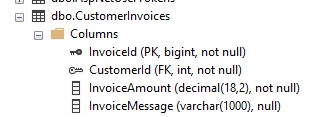
Customer Invoices Table
And here’s the SQL DDL for the table:
USE [appdb]
GO

SET ANSI_NULLS ON
GO

SET QUOTED_IDENTIFIER ON
GO

CREATE TABLE [dbo].[CustomerInvoices](
	[InvoiceId] [bigint] IDENTITY(1,1) NOT NULL,
	[CustomerId] [int] NOT NULL,
	[InvoiceAmount] [decimal](18, 2) NOT NULL,
	[InvoiceMessage] [varchar](1000) NULL,
 CONSTRAINT [PK_CustomerInvoices] PRIMARY KEY CLUSTERED
(
	[InvoiceId] ASC
)WITH (PAD_INDEX = OFF, STATISTICS_NORECOMPUTE = OFF, IGNORE_DUP_KEY = OFF, ALLOW_ROW_LOCKS = ON, ALLOW_PAGE_LOCKS = ON, OPTIMIZE_FOR_SEQUENTIAL_KEY = OFF) ON [PRIMARY]
) ON [PRIMARY]
GO

ALTER TABLE [dbo].[CustomerInvoices]  WITH CHECK ADD  CONSTRAINT [FK_CustomerInvoices_Customers] FOREIGN KEY([CustomerId])
REFERENCES [dbo].[Customers] ([Id])
GO

ALTER TABLE [dbo].[CustomerInvoices] CHECK CONSTRAINT [FK_CustomerInvoices_Customers]
GO
Here’s a screenshot of the Customers table structure:
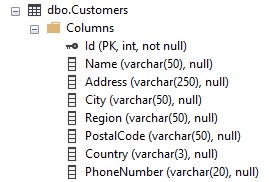
Customers Table
And here’s the SQL DDL for the Customers table:
USE [appdb]
GO

SET ANSI_NULLS ON
GO

SET QUOTED_IDENTIFIER ON
GO

CREATE TABLE [dbo].[Customers](
	[Id] [int] IDENTITY(1,1) NOT NULL,
	[Name] [varchar](50) NULL,
	[Address] [varchar](250) NULL,
	[City] [varchar](50) NULL,
	[Region] [varchar](50) NULL,
	[PostalCode] [varchar](50) NULL,
	[Country] [varchar](3) NULL,
	[PhoneNumber] [varchar](20) NULL,
 CONSTRAINT [PK_Customers] PRIMARY KEY CLUSTERED
(
	[Id] ASC
)WITH (PAD_INDEX = OFF, STATISTICS_NORECOMPUTE = OFF, IGNORE_DUP_KEY = OFF, ALLOW_ROW_LOCKS = ON, ALLOW_PAGE_LOCKS = ON, OPTIMIZE_FOR_SEQUENTIAL_KEY = OFF) ON [PRIMARY]
) ON [PRIMARY]
GO
And here are the model classes for Customers and CustomerInvoice:
public class Customer
{
    public int Id { get; set; }
    public string? Name { get; set; }
    public string? Address { get; set; }
    public string? City { get; set; }
    public string? Region { get; set; }
    public string? PostalCode { get; set; }
    public string? Country { get; set; }
    public string? PhoneNumber { get; set; }
}

public class CustomerInvoice
{
    public long InvoiceId { get; set; }
    public int CustomerId { get; set; }
    public decimal InvoiceAmount { get; set; }
    public string? InvoiceMessage { get; set; }
    public Customer? Customer {get; set;}
}
For these examples, I’ve also created a map for the CustomerInvoice class:
using LinqExamples.Models;
using Microsoft.EntityFrameworkCore;
using Microsoft.EntityFrameworkCore.Metadata.Builders;

public class CustomerInvoiceMap : IEntityTypeConfiguration<CustomerInvoice>
{
    public void Configure(EntityTypeBuilder<CustomerInvoice> builder)
    {
        builder.ToTable("CustomerInvoices");
        builder.HasKey(c => c.InvoiceId);
        builder.Property(p => p.InvoiceAmount)
               .HasPrecision(18, 2);
    }
}
The map tells Entity Framework Core what the primary key of the table is, as “InvoiceId” does not follow the standard EF Core convention of using just Id or <TypeName>Id as the primary key name.
The map also lets EF Core know the precision of the InvoiceAmount column.
For this example, we’ll also need the code for the AppDbContext, which tells the .NET application how the database context is configured.
using ViewLinqSql.Models;
using Microsoft.EntityFrameworkCore;
using System;
using System.Collections.Generic;
using System.Linq;
using System.Runtime.ConstrainedExecution;
using System.Text;
using System.Threading.Tasks;

namespace ViewLinqSql
{
    public class AppDbContext : DbContext
    {
        private readonly string? _connectionString;
        public DbSet<Customer> Customers { get; set; }
        public DbSet<CustomerInvoice> CustomerInvoices { get; set; }
        public DbSet<UserCustomer> Usercustomers { get; set; }

        public AppDbContext(DbContextOptions<AppDbContext> options)
                : base(options)
        {
        }

        public AppDbContext(string connectionString)
        {
            _connectionString = connectionString;
        }

        protected override void OnConfiguring(DbContextOptionsBuilder optionsBuilder)
        {
            if (!optionsBuilder.IsConfigured && _connectionString != null)
            {
                optionsBuilder.UseSqlServer(_connectionString);
            }
        }

        protected override void OnModelCreating(ModelBuilder modelBuilder)
        {
            modelBuilder.Entity<CustomerInvoice>()
            .HasKey(c => c.InvoiceId);

            modelBuilder.ApplyConfiguration(new CustomerInvoiceMap());
        }

    }
}
We’ll use one of the join examples from the previous joining tables with LINQ post. I did move this to a new project with a new namespace, but it’s still the same logic as the first example in the previous post. Here is the console Program.cs file containing the join example:
using Microsoft.Extensions.Hosting;
using Microsoft.Extensions.Configuration;
using Microsoft.Extensions.DependencyInjection;
using Microsoft.EntityFrameworkCore;
using ViewLinqSql;


var builder = Host.CreateApplicationBuilder(args);

builder.Configuration.AddJsonFile("appsettings.json");

var connectionString = builder.Configuration.GetConnectionString("DefaultConnection");
if (connectionString == null)
{
    Console.WriteLine("Connection string cannot be null.");
    return;
}

builder.Services.AddDbContext<AppDbContext>(options =>
    options.UseSqlServer(connectionString));

var app = builder.Build();

using var scope = app.Services.CreateScope();
var context = scope.ServiceProvider.GetRequiredService<AppDbContext>();

var query = context.CustomerInvoices.Join(context.Customers,
    invoice => invoice.CustomerId, customer => customer.Id,
    (invoice, customer) => new
    {
        customer.Id,
        customer.Name,
        customer.Address,
        invoice.InvoiceId,
        invoice.InvoiceAmount,
        invoice.InvoiceMessage
    });

var customerInvoices = query.Where(x => x.Id == 1).ToList();

Console.WriteLine(customerInvoices[0]);
Console.WriteLine();
Console.ReadKey();

var query2 = context.CustomerInvoices.Join(context.Customers,
    invoice => invoice.CustomerId, customer => customer.Id,
    (invoice, customer) => new
    {
        CustomerId = customer.Id,
        CustomerName = customer.Name,
        CustomerAddress = customer.Address,
        invoice.InvoiceId,
        invoice.InvoiceAmount,
        invoice.InvoiceMessage
    });

var customerInvoices2 = query2.Where(x => x.CustomerId == 2).ToList();

Console.WriteLine(customerInvoices2[0]);
Console.ReadKey();
I’ll run the program, stepping through to the second ReadKey, and the following output is displayed:

Output of Program Showing Results of Join
Now we know the program is working as expected. When working with LINQ that gets translated to SQL, it can often be very helpful to inspect the actual SQL being generated by LINQ. Let’s look at a couple of ways to do this.
Now that we’ve established our example, we can look at three different ways to see the generated SQL queries.
The easiest way to examine the query is using the debugger. I’ll put a breakpoint on the first ReadKey() and let the program run to the breakpoint.
Once at the breakpoint, I can hover over the query variable, an instance of an object that implements the IQueryable interface, to inspect it.
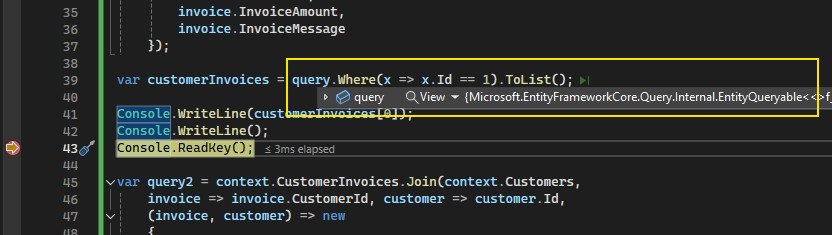
Hovering Over the Query Variable
On the left side of the information that displays when hovering over the variable is a small arrow. Hovering over this arrow expands additional information available from the debugger.
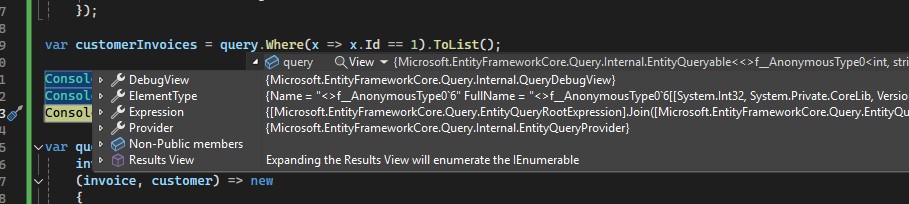
Expanded query Variable Information
Finally, hovering over the arrow next to Debug View displays two additional properties of the query variable, an Expression property and Query property. The Query property contains the SQL statement that was generated from the LINQ code.

The Query property of the query Variable
From here, we can right click on the Query property and click “Copy Value” from the context menu.
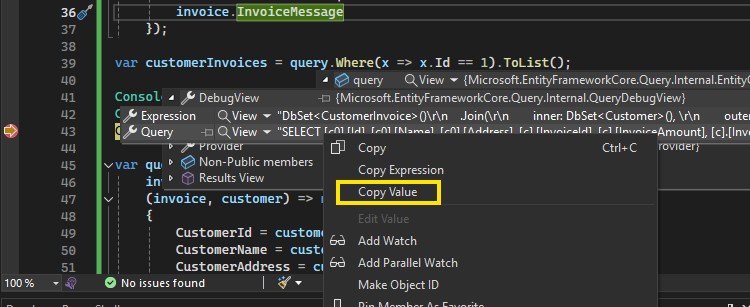
The Copy Value Item From the Context Menu
If we click Copy Value and then paste the copied value into a text editor, we can see the SQL statement that was generated from the LINQ code:
SELECT [c0].[Id], [c0].[Name], [c0].[Address], [c].[InvoiceId], [c].[InvoiceAmount], [c].[InvoiceMessage]
FROM [CustomerInvoices] AS [c]
INNER JOIN [Customers] AS [c0] ON [c].[CustomerId] = [c0].[Id]
While hovering is the fastest and most convenient way to view information about a variable in the debugger, another way to get to this same information is to add a watch on the query variable. To do this, right click on the variable and click “Add Watch” from the context menu.
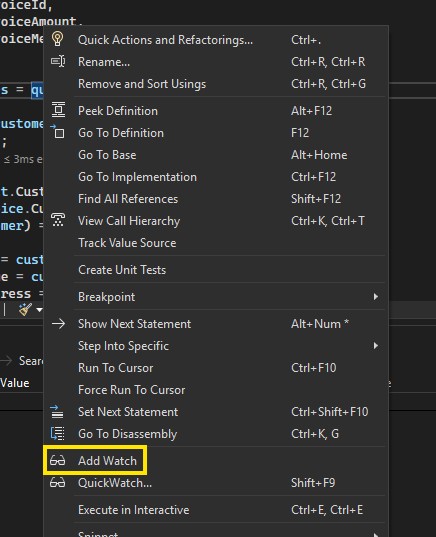
The Add Watch Item From the Context Menu
This will add a watch in the Watch panel of Visual Studio. The variables properties can then be expanded and inspected in the same way as the hover method.
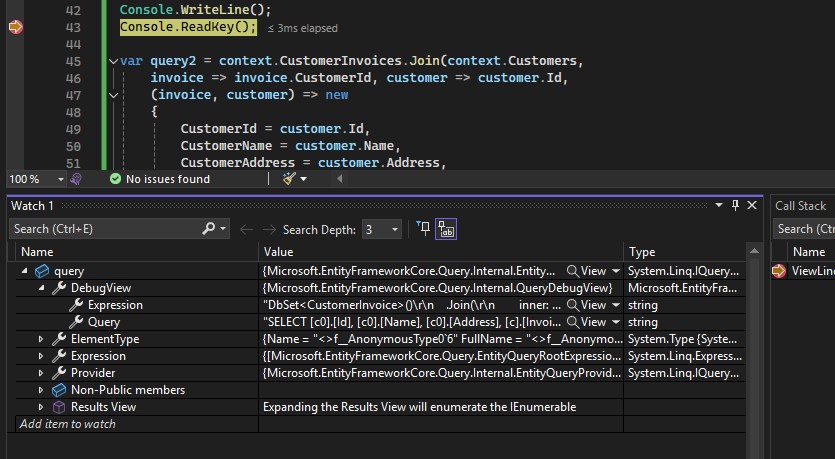
The Variable Information in the Watch Panel
Another way to view the SQL generated by LINQ in EF Core is to use the ToQueryString() method on the IQueryable variable.
To do this, I’ll add the following line of code just before the lines that write to the console.
var queryString = query.ToQueryString();
If I run the code to the same breakpoint added earlier, I can inspect the queryString variable, which now contains the generated SQL statement.

The SQL Statement Written to a Variable From ToQueryString
EF Core integrates with .NET’s built in logging. For a simple example, I will add the following line to the OnConfiguring method of the AppDbContext class:
optionsBuilder.LogTo(Console.WriteLine);
Here is the entire updated OnConfiguring method.
protected override void OnConfiguring(DbContextOptionsBuilder optionsBuilder)
{
    if (!optionsBuilder.IsConfigured && _connectionString != null)
    {
        optionsBuilder.UseSqlServer(_connectionString);
    }

    optionsBuilder.LogTo(Console.WriteLine);
}
Running the program to the same breakpoint again shows that EF Core is now writing log output to the console. The output is verbose, but with a little bit of scrolling, I can find the SQL statement that was generated.
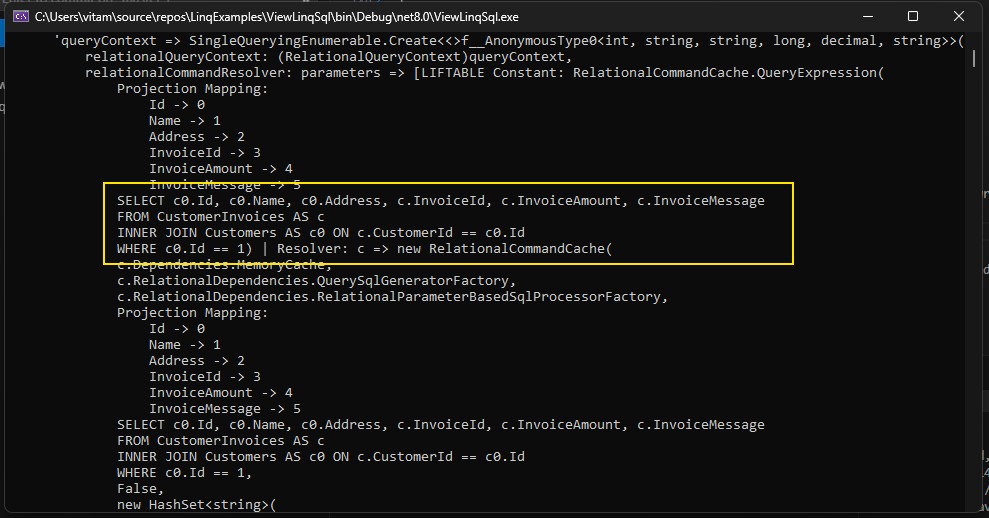
The SQL Statement in the Log Output
You’ll notice a minor difference between the SQL in the log output and the SQL copied earlier. In the log output, we’re seeing the WHERE c0.Id == 1 added to the query. This additional WHERE clause is coming from the query.Where(x => x.Id == 1) in the code. If we to wanted capture the effect of the call to .Where() in code, we could call ToQueryString() after the Where. The example code would look like this var queryStringWithWhere = query.Where(x => x.Id == 1).ToQueryString();.
Logging to the console is great for debugging, but is generally not recommended in production due the potential exposure of sensitive information. If you do need to write SQL output to the logs, write the logs to a secure location, such as a file protected by file system security, a database table, or some other log ingestion system that provides adequate security mechanisms.
For more information on writing to a log, see Simple Logging from the Entity Framework Core documentation.
In this post, we looked at a few different methods of viewing SQL statements generated by LINQ code. Specifically in a .NET Core console application written in C#. Whether you’re trying to resolve a bug or investigating database performance issues, examining the SQL that gets generated from LINQ can be very helpful.